VMware vSphere: Attaching Global Templates and Registering Templates
Overview
Most customers will rely on us to kick and build VMs for them. As such we need to mount our Global Template Datastore to their cluster. Once their cluster has access to the Global Templates Datastore we can register a VM template to their cluster and then use it to deploy a VM. This article will detail how to attach the Global Template Datastore as well as registering a Template.
Adding the Global Template Datastore
Global Templates
For DC3:
Host: MASKED
Share: /Templates
For DC2:
Host: MASKED
Share: /Templates
 Before you begin...
You should only have to do this once per cluster, so if the Global Template Datastore already exists this isn't necessary. However if you experience issues with the template access Support Eng may advise that you remove and re-add the Global Template Datastore.
Open the add Datastore dialog
To begin the process:
1. Login to the customer's vCenter as the LW user,
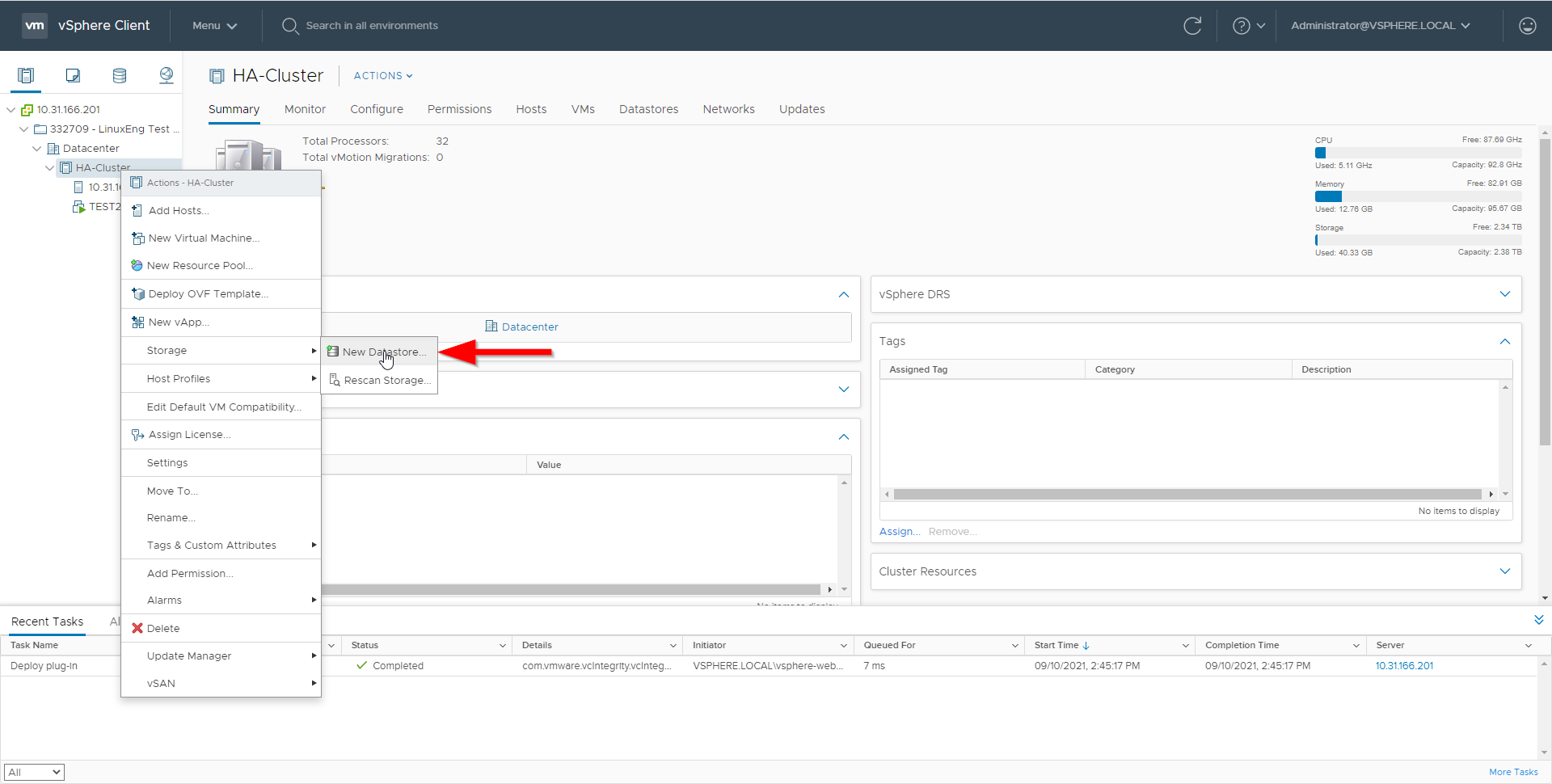
2. From the main vCenter tab right-click the "HA-Cluster",
3. In the right click menu, select "Storage > New Datastore".
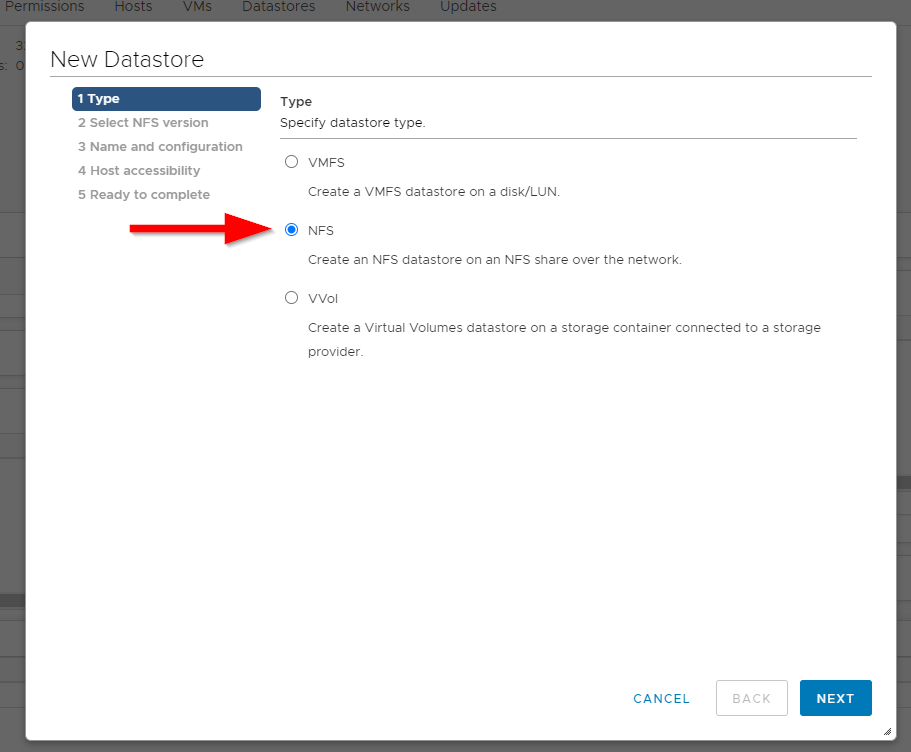
Select NFS type
In the datastore connection dialog window:
1. On the first page, select: NFS,
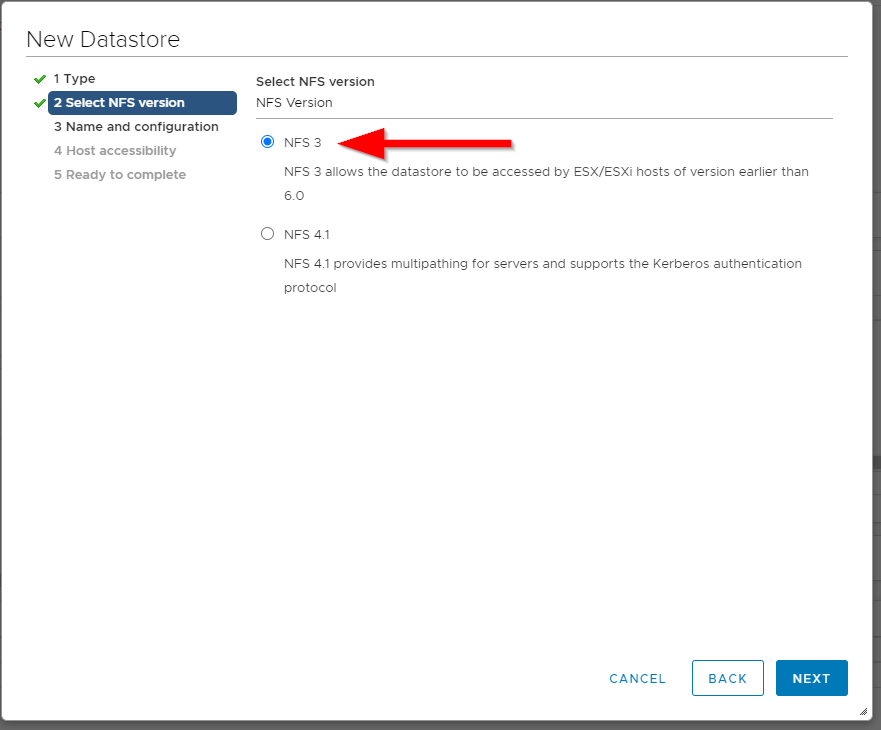
2. On the second page, select: NFS 3
Fill in the Global Templates Datastore details
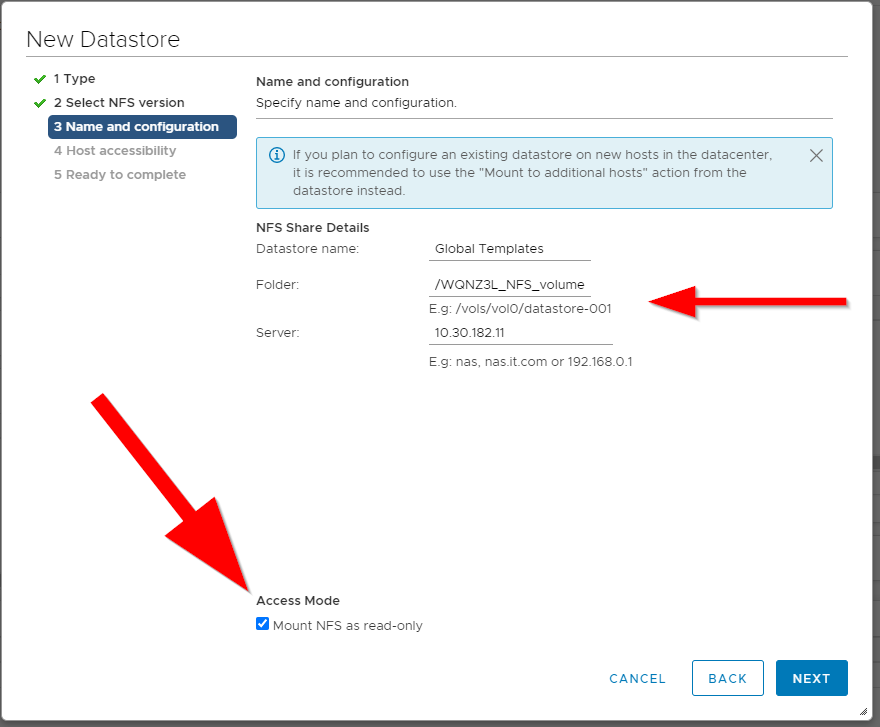
On the Name and Configuration page:
1. Identify which Global Templates Datastore information will be used to connect (match the DC the cluster is in),
2. Fill in the: Name, Folder, and Server details,
3. Then, ensure that the Mount NFS as read-only option is selected,
4. Finally click next.
Ensure all hosts mount the datastore
On the Host Accessability page select all the servers in the cluster!
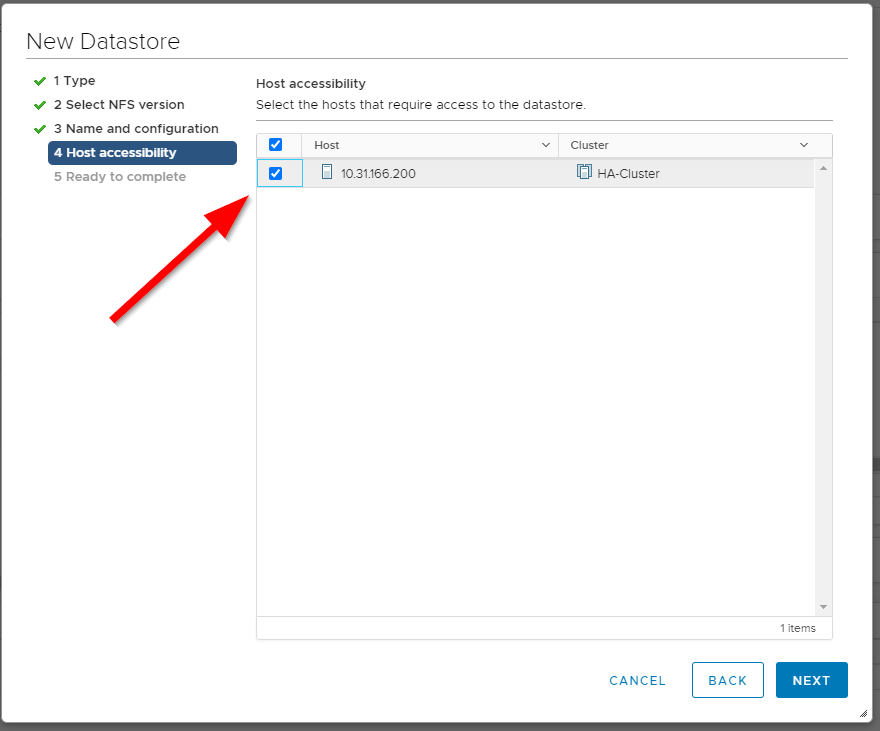
Note: this test cluster used for the documents is a single node cluster, ensure you select all nodes.
Complete and Review
On the final page it will summarize the selections you have made. If they look correct click "Finish".
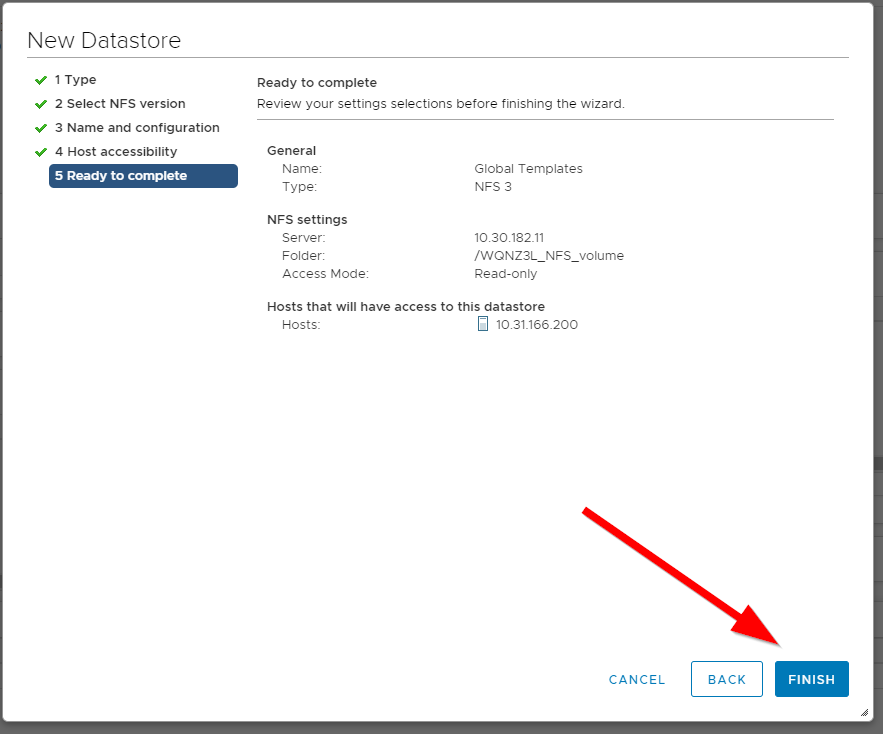
Finally, review to ensure that all the hosts have the datastore attached before proceeding to register VM Templates.
Register a VM Template to customer cluster
Template Basics
VM templates must be registered to the customer cluster before they can be used. Given that we have a number of templates and not all customres will need them we only do this as needed. So only register the VM templates you will actually be using to deploy a VM.
If you don't see a template you need, simply follow these directions for the template in question.
In the following example, we'll be registering the "CentOS 7 Coremanaged Template" to the cluster.
Identify the Template in Global Templates
1. Start by opening the "Storage" tab from the main nav, then click onto the "Global Templates" datastore.
2. Review the list and click into the folder for the template you need.
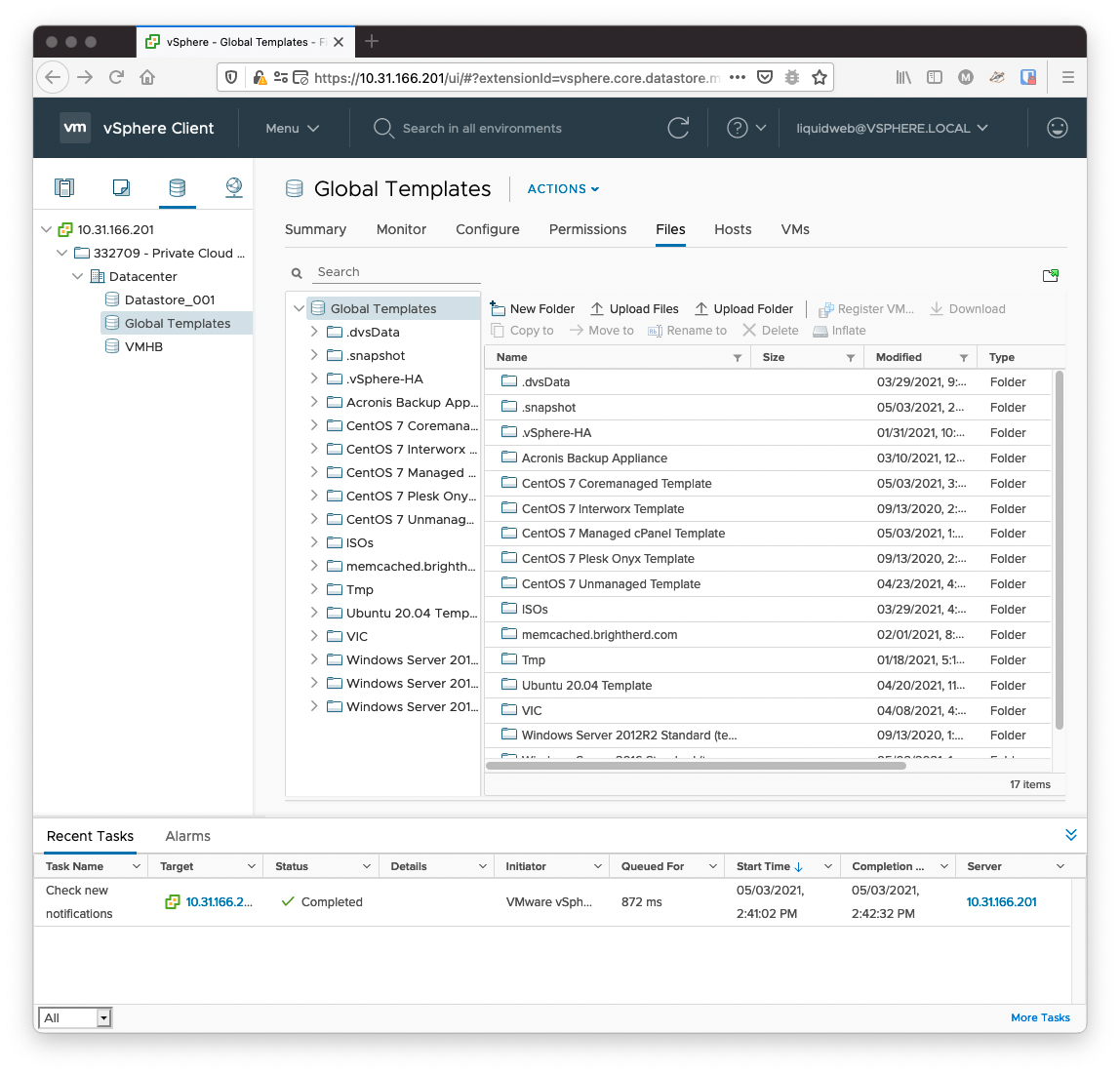
If you are looking at just the screenshot above you may be slightly confused at first. The Global Templates datastore was organized into a hierarchy when it was redone with the addition of vSphere 7.0 clusters. As such the folders are now separated for vSphere 6.7 and higher compatibility versus vSphere 7.0 and higher compatibility. In addition to being further broken down into separate folders for the Operatng System types of Linux and Windows, along with other things we need occasionally such as ISO images. As we now have over 23 Templates available this made the folder structure much cleaner than dumping them all into the root of the Global Templates folder
Select the VM Template file
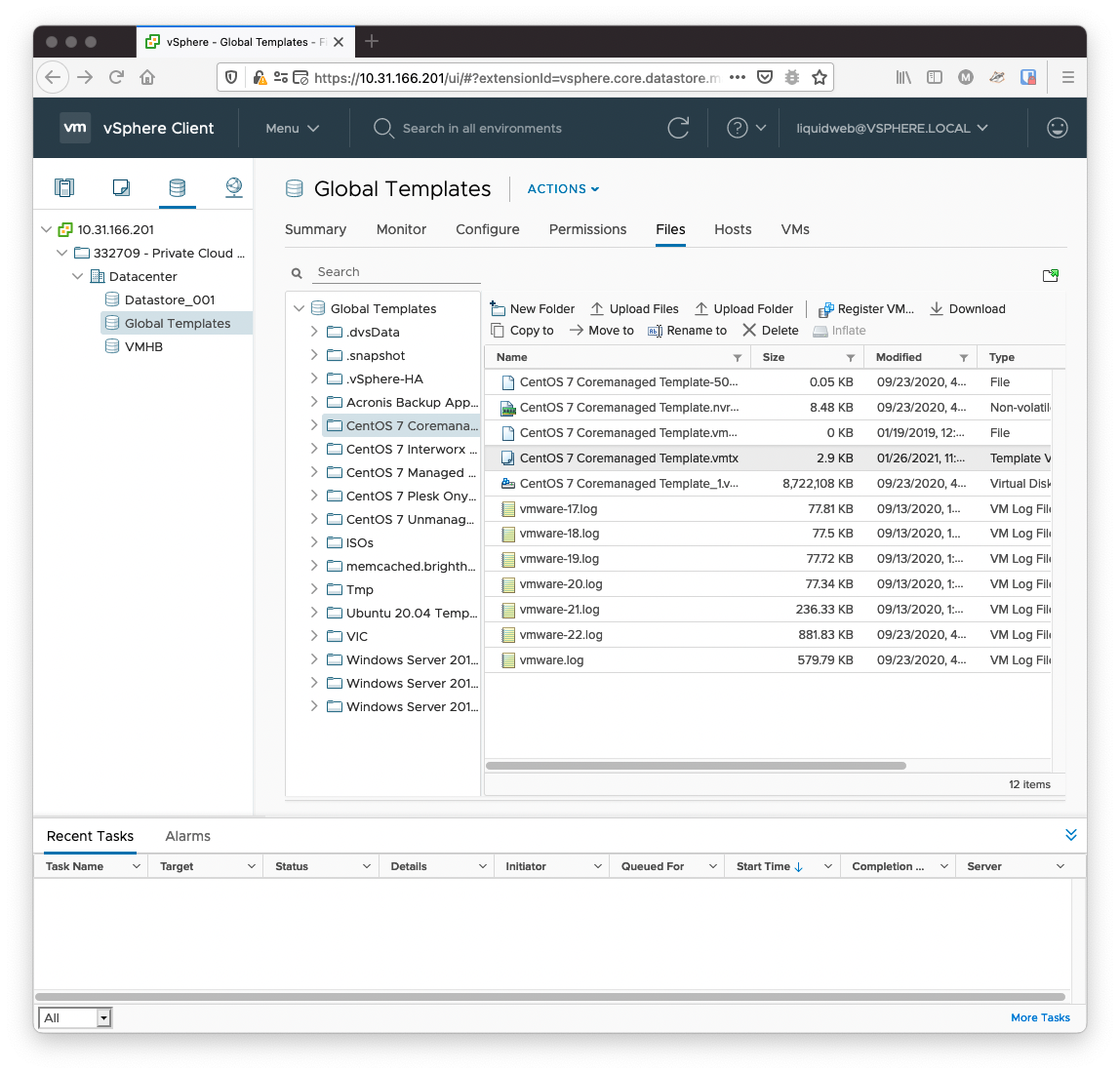
1. Inside the template directory, click the "Template VM" file (.vmtx).
2. You should now see "Register VM..." button as an option.
3. Click the "Register VM..." button to start the process.
Register the VM Template to the cluster
You can do this for as many VM templates as the customer may need. Generally we only register templates as needed though, so you only need to do this for the templates being used to fulfill the order.
1. To complete the registration process, on the first page:
a. Leave the name as is,
b. Expand the "Datacenter" item,
c. Click and select the "Templates" folder,
d. Click the "Next" button.
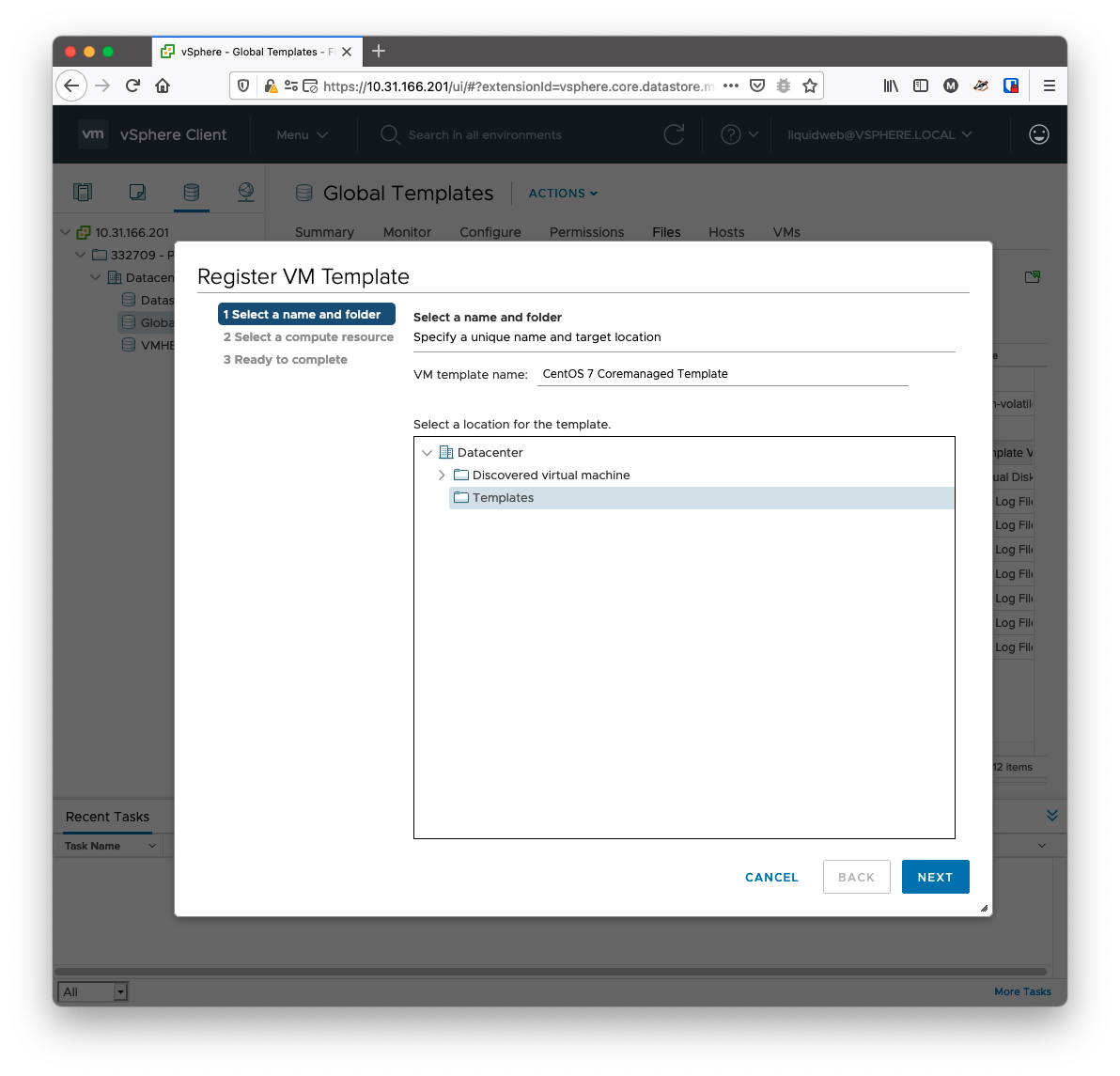
2. On the second page, simply click into "HA-Cluster" and select any parent (normally the first) then hit "Next",
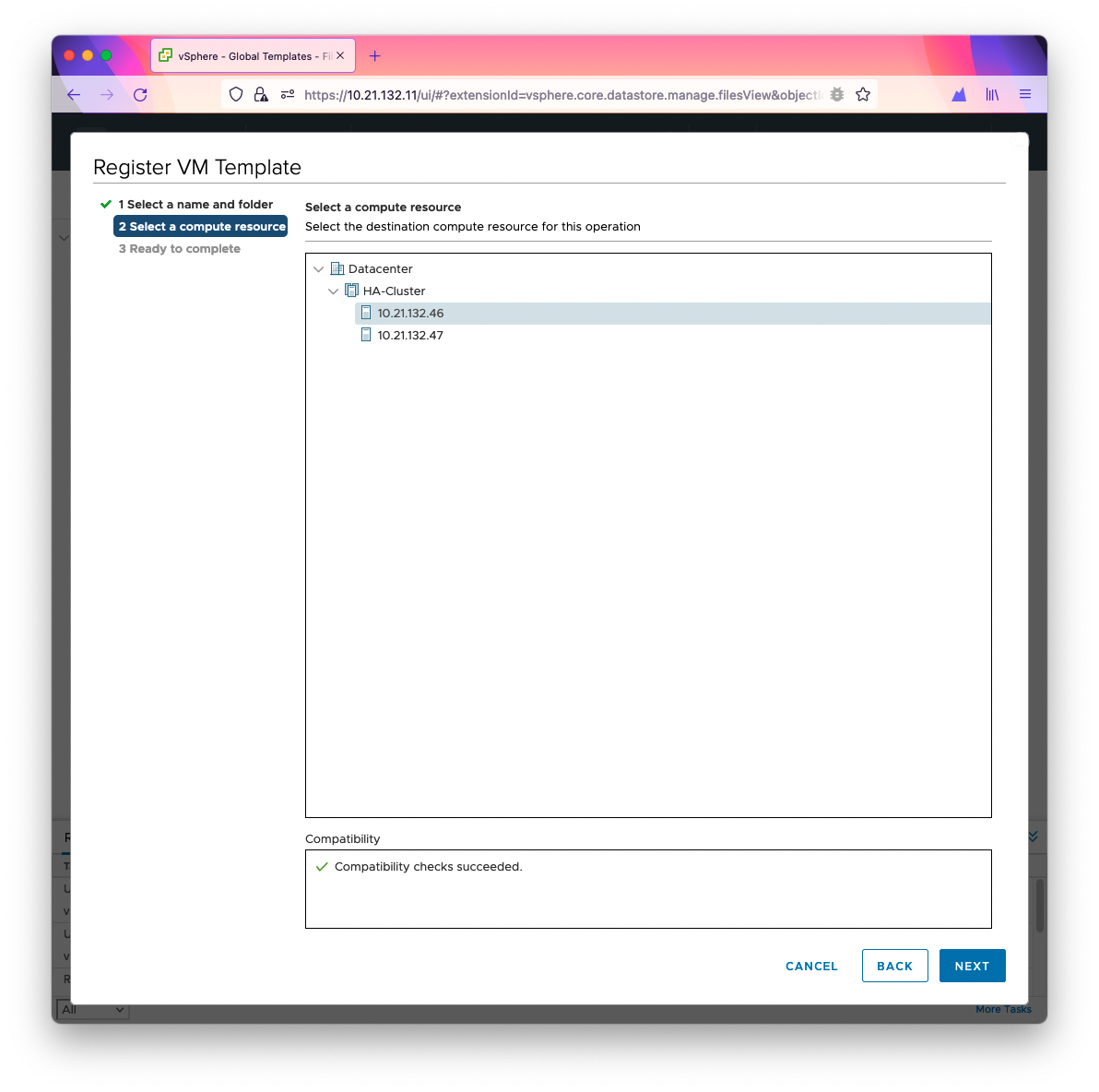
3. On the final page simply hit Finish.
Miscellaneous
Why can't I register this VM Template to the HA-Cluster
Registering VM Templates properly
In the past you may have been instructed to select `HA-Cluster` when registering a VM Template. If you try this now you will encounter errors registering the template to HA-Cluster. Instead you should ensure that you select one of the physical parents rather than the HA-Cluster.
The reason for this change comes down to how we manage Global Templates Datastore. While not wrong, per-say, in the past we originally mounted the GT Datastore as read-write on customer clusters. This could lead to customers changing templates, or storing VMs on the wrong datastore. To prevent those issues we now mount the Global Templates Datastore as read-only. In doing so, this requires we register the VM Templates to an individual parent server instead of the HA-Cluster as a whole.
If you encountered this issue, simply try again and instead select any one of the clusters parent server.
Un-register a template
Un-registering templates
Unregistering a Datastore Global Template and Removing a Datastore
Streamlining the removal of datastores might seem straightforward, yet it requires careful execution to ensure optimal outcomes. Despite being relatively uncomplicated, several steps must be followed in the correct sequence to achieve the desired result. Unfortunately, outdated knowledge base articles and conflicting information can complicate matters. In this concise guide, I'll outline the best practices for removing a datastore from an ESXi host without compromising its data integrity. This method is particularly advantageous for workflows involving storage unrelenting from a group of hosts, migration to other hosts, lab experiments, or any scenario requiring a pristine inventory view while safeguarding virtual machines.
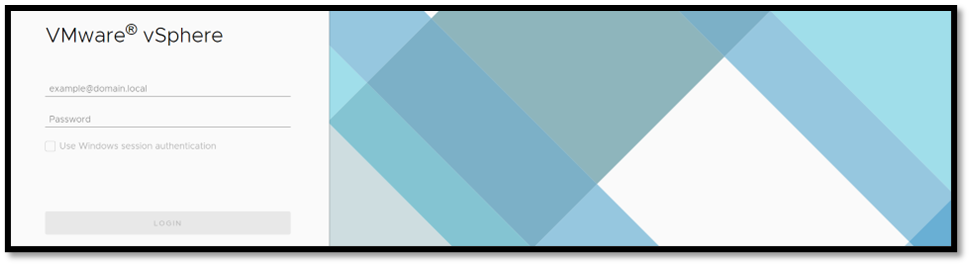
1. Access vSphere Web Client:
Open your web browser and navigate to the vSphere Web Client interface.
2. Navigate to Datastores View:
Once logged in, go to the "Datastores" view to see a list of all registered datastores.
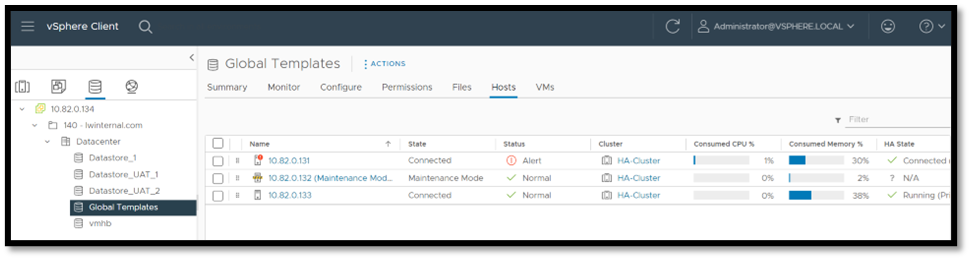
3. Locate the Datastore Global Template:
In the list of datastores, find the specific datastore global template you want to unregister and remove.
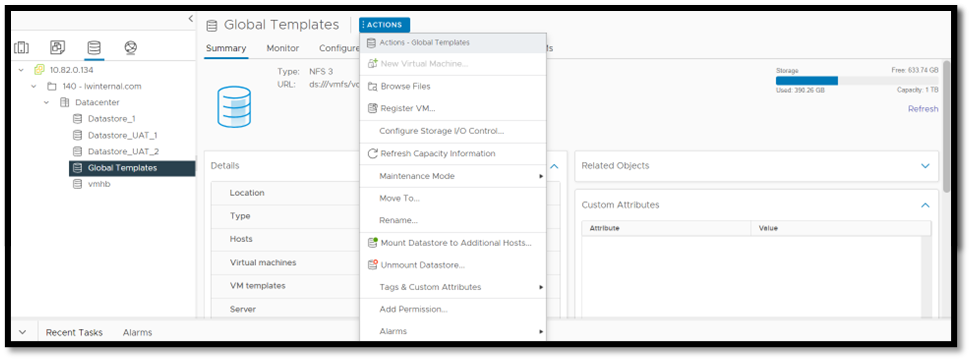
4. Unregister Datastore:
Right-click on the datastore entry representing the global template. From the context menu, select the option labelled "Unregister from Inventory."
5. Confirmation Prompt:
A confirmation prompt will appear to verify your intention to proceed with unregistering the datastore. Confirm the operation to proceed with removing the datastore from the vCenter Server inventory.
6. Additional Steps for Datastore Removal:
Keep in mind that unregistering the datastore global template does not delete the actual datastore or its contents from the underlying storage device.
By following these steps, you can effectively unregister a datastore global template and remove it from vSphere environment.